Keep supplier approval scope visible on purchase requests
For procurement, stores and subcontract operations teams · Compare approaches
TL;DR — what you’ll learn
- Compare a purchase request with the approval record it actually references.
- Keep part, process, producing site and effective dates as separate fields when the source records distinguish them.
- Report a missing or different value without inferring approval from the supplier name.
- Use the comparison to prepare questions for procurement; it does not qualify a supplier.
A buyer selects an existing supplier for a bracket order because the supplier already provides spacers. The supplier name matches the vendor master. The approval record attached to the request, however, mentions a different part and producing site. A useful purchasing screen makes that discrepancy visible before someone relies on the wrong record.
This article covers a read-only record comparison. Supplier qualification, trial acceptance and permission to order remain decisions in the existing approval process. The comparison neither sets those criteria nor substitutes a certificate for an approval.
Compare the scope written in each record
Consider an original illustrative example. The purchase request is for 300 brackets from Site West. Its referenced approval record describes spacers from Site East.
Scroll horizontally to see all columns.
| Field | Purchase request | Referenced approval record | Comparison result |
|---|---|---|---|
| Supplier identifier | S-18 | S-18 | Same identifier |
| Part | Bracket B | Spacer A | Different values |
| Producing site | West | East | Different values |
| Process | Plating specified | No process field supplied | Missing comparison input |
| Quantity | 300 | No quantity scope supplied | No quantity conclusion available |
The result is a list of questions, not a rejection or approval. The 300-unit quantity does not establish a trial size. An empty process field does not mean every process is covered. A supplier-level flag cannot answer a part-level question unless the underlying approval explicitly has that scope.
Microsoft documents approved vendors for specific products, including effective periods and configurable checking. That establishes a native product/vendor feature; it does not establish that every installation models process and site qualification. Check the existing feature before building a separate register. Microsoft approved vendors documentation.
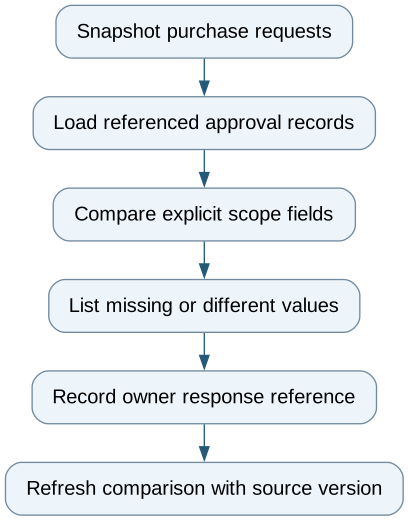
Keep supplier approval scope visible on purchase requests — reporting workflow
Follow the workflow below, or open its complete text version.
Read the complete workflow as text
- Snapshot purchase requests → Load referenced approval records
- Load referenced approval records → Compare explicit scope fields
- Compare explicit scope fields → List missing or different values
- List missing or different values → Record owner response reference
- Record owner response reference → Refresh comparison with source version
Retain the evidence behind a comparison
For each result, retain the request identifier and version, approval-record identifier and version, source timestamp and the exact values compared. If a field uses aliases, show the mapping version. A mapping from “West Works” to “Site West” is a data decision that needs a visible origin; a similar name alone is weak evidence of identity.
Compare effective dates using a stated reference date from the request. If that date or the record's date interpretation is missing, report it as unknown. Do not substitute today's date silently. Keep an expired record visible as historical evidence rather than dropping the row and making the request appear unreviewed for a different reason.
Start with a small exception list
A worksheet is adequate for a small set of requests. A native ERP field or report is preferable when it already exposes the source references. An integration becomes useful when the purchasing screen cannot retrieve those references consistently.
Test a same-name supplier with a different identifier, a missing site, an expired record, a corrected request and two competing approval versions. The output should explain each difference and link back to its inputs. Receiving an owner's response should refresh the comparison with that response reference; it should not let the reporting tool grant production approval.
Start by tracing five recent requests from request line to approval evidence. The immediate decision is whether the buyer can find the right record, and which missing fields prevent a reliable comparison.
Compare this workflow with your current setup
Share the step that takes the most manual work, the systems involved and the exceptions your team handles. That gives us a concrete starting point for comparing approaches.
Sources and further reading
Sources checked 15 October 2026. Worked examples and workflow diagrams are original illustrations, not reported client results.